
How can we help?
Fern CRM Office Hours
We host live, interactive, online office hours every week to help you get hands-on help with anything inside your Fern CRM dashboard.
Here’s what you need to know:
- Virtual meetings & livestreaming are some of the highest pollution activities we do as online business owners.
To reduce waste, the Fern CRM team will only host Office Hours sessions when a member has agreed to show up.
You can RSVP in advance or ping us during any Office Hours time slot and we’ll hop on right away. (More details below.) - Office Hours take place right here inside the Brain Trust Community. So you need to be logged in to join the meeting.
- Office Hours are open to all Fern CRM members as long as your account is active. But you don’t need to show up live to get your questions answered. (More details below.)
- Occasionally we need to cancel or reschedule Office Hours, typically with weeks of advance notice. When this happens, the calendar here in the community will be updated and will always reflect the most accurate dates/times.
More details:
How to RSVP for a specific Office Hours session:
Go to the Events calendar here in the Community and click on the Office Hours event on the day you want to attend. A window will popup with the event details including a button to “Register.”
Click the button to RSVP for that specific session:
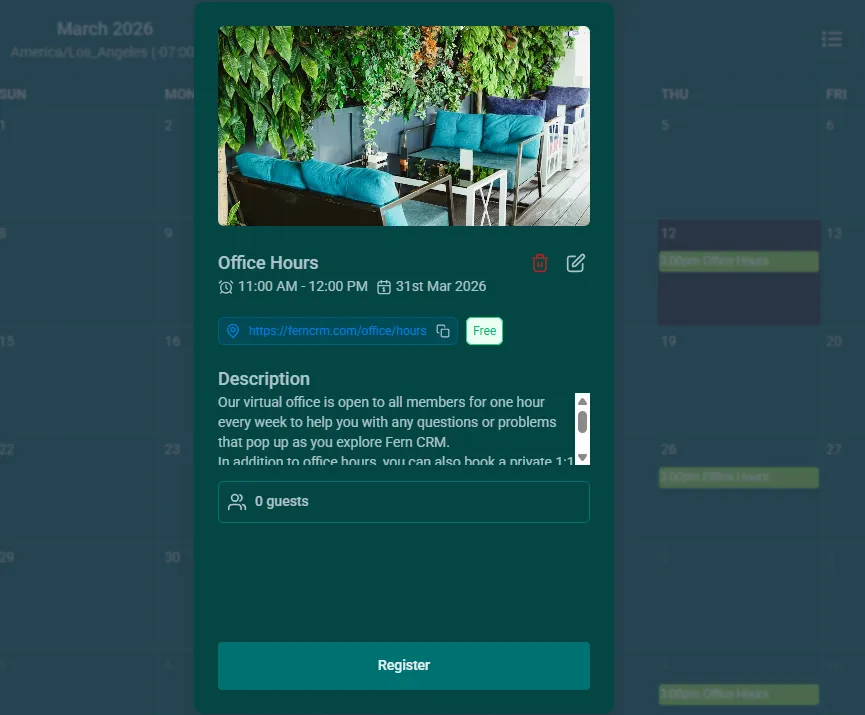
I’ll know to open the room if I see someone has RSVP’ed and you’ll see a live video post appear in the main feed and the Tech Support channel once I’ve started the meeting. Click the button in the post to join.
If you don’t plan to join at the beginning of the hour, please let me know ahead of time. If no one joins within the first 10 minutes, I’ll end the meeting and you’ll have to DM me to start it up again.
You can also just message me ahead of time via the channel of your choice!
How to join an Office Hours session after the start time:
During Office Hours, you’ll see an alert banner at the top of the Community page like this:

If a meeting has already started, you’ll see the live post in the Tech Support channel that looks something like this:
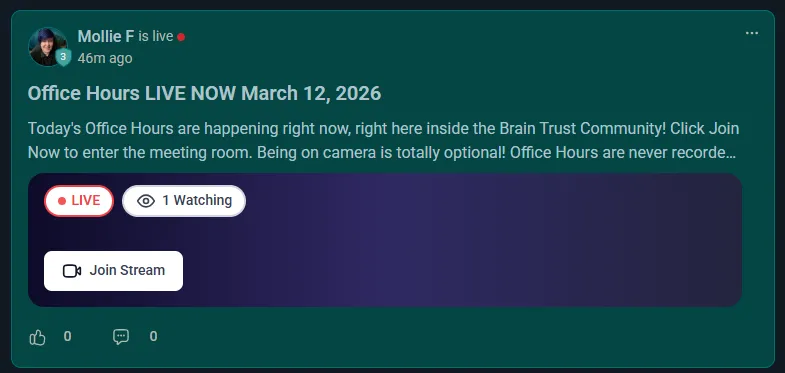
If you don’t see the meeting in progress during Office Hours, first try refreshing the page.
If you still don’t see it, ping us and we’ll start one asap.
The best way to ping us to start an Office Hours session, during an Office Hours time slot:
DM me (Mollie) inside the Brain Trust group for fastest results. That’s where I’ll be looking if there’s not already a meeting in progress.
Of course, everyone is welcome to join any Office Hours that is already in progress, no need to DM or RSVP when that’s the case!
A few tips for how the Office Hours work, for those who don’t like surprises. 😎
- Office hours are live sessions where you can pop in at any point, get help, and leave.
- You don’t have to be on camera unless you want to. (In fact, being on camera increases the pollution created, so we’ll never pressure you to turn it on!)
- We don’t record Office Hours or share the replays (so you don’t have to worry about your tech problems living forever on the internet.)
- In most cases, you’ll be asked to share your screen so we can see the problem and then show you how to fix it. Only the people in the room with you will see what’s on your screen. (People surfing the community who haven’t joined the room can’t see what’s happening.) If you’re concerned about privacy, please book a 1:1 session with us instead.
- If your question doesn’t require you to share your screen specifically, we’ll share our demo account instead so you can follow along and implement the steps in your account as we do them in ours.
- We use Fern CRM’s built-in meeting software for the meeting itself which has limited accessibility features at this time. But we take accessibility very seriously! Please reach out anytime if you need specific settings or assistance to get the most out of Office Hours and we’ll be happy to work with you.
- You don’t have to attend live to get questions answered. Post your questions in the group and we’ll answer right away. The office hours are for when you want someone to guide you through the answer or when we need to see the problem in action in order to help you solve it. (For example, when you need help with your specific situation and following a tutorial isn’t enough to help you do it.)
- When more than one person shows up for office hours, we generally help each person in the order they arrive (so it pays to show up at the beginning!) But we also make an effort to ensure everyone present is helped. In our experience, it works out fairly for everyone. If the sessions become too crowded to achieve this, we’ll add additional office hours each week to ensure everyone is supported.
About the Office Hours meeting software:
- You don’t need to download anything, just click the link to join inside the post with the livestream happening.
- You can’t hear or see anything happening inside the meeting until you join and someone lets you in.
- When you first click to join the meeting, you’ll be in the waiting room. You’ll probably be asked for permission to use your camera and/or microphone. You need to grant permission before it will let you “knock” on the door to be let into the meeting room.
The host will let you into the main room almost immediately after you “knock.” If you’re not let in immediately, it probably means we’re looking at another screen while we help someone else and will let you in as soon as possible. Just hang tight!