How can we help?
How To Easily Import Your Courses From Kajabi
The Kajabi Importer allows for simple migration of courses from Kajabi to the course platform inside Fern CRM. This guide provides step-by-step instructions to ensure a smooth transition.
Prepare the import
Before you hit the button to start moving things over, there are a few steps to make the transition more successful.
Tips:
- To optimize your experience, it’s recommended to refrain from using custom CSS.
- Create a backup of your themes. This precautionary step allows you to revert to your original settings if needed.
- Initiate the migration during off-hours to minimize any potential impact on your learners while using the course.
- All videos, images and text content will be migrated for courses (and lessons).
- The import will only bring in lessons that have been published. At the time this article was published, the assignments, quizzes, and assessments will not be included in the import process but these features are being added.
- The preferred themes for the Library and Product sections are Encore Site and Premier Product, respectively. (More details in Step 1 below.)
- You do need to be using a custom domain in Kajabi in order for the import tool to work. (Example: yourdomain.mykajabi.com)
These steps are SUPER important to the success of the import. Follow them and the Fern side will be pretty easy.
Step 1: Prep Things In Kajabi
This video is a little bit outdated on the Highlevel side (Fern CRM is built on Highlevel), but does a better job of showing things on the Kajabi side. So watch it if you need more context for any of the steps listed below. But follow the steps in this Help Doc because they’re the most recent and accurate:
Make sure your Kajabi library is using an Encore theme. (For example, the Streamlined Home theme is an Encore theme and you’ll see the Encore version number under the name of the theme. Watch the video above for more visual details.)
Make sure all the courses you want to move to Fern CRM are “published” (not draft mode) and that each one is using the Premier Product theme. (Open each course and click on “Customize” to change the theme to Premier Product.)
Make sure your Kajabi courses are published on a custom domain. (Example: yourdomain.mykajabi.com)
Create a new learner/student profile in Kajabi. Give that new student a name and email address. (Any name and email address is fine.) Give them a password for logging in.
Once you’ve created the new student in Kajabi, give that student access to all the courses you want to move over to Fern CRM.
Once you’ve finished these steps, proceed to Step 2.
Access the importer
Step 2: Open your Fern CRM dashboard and access the importer
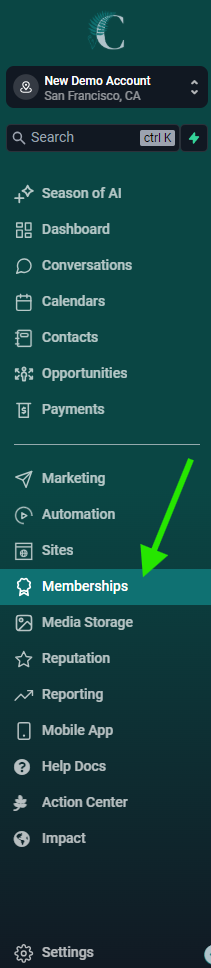
Go to Memberships > Courses > Products and click the “Create Product” button in the top right of the page:
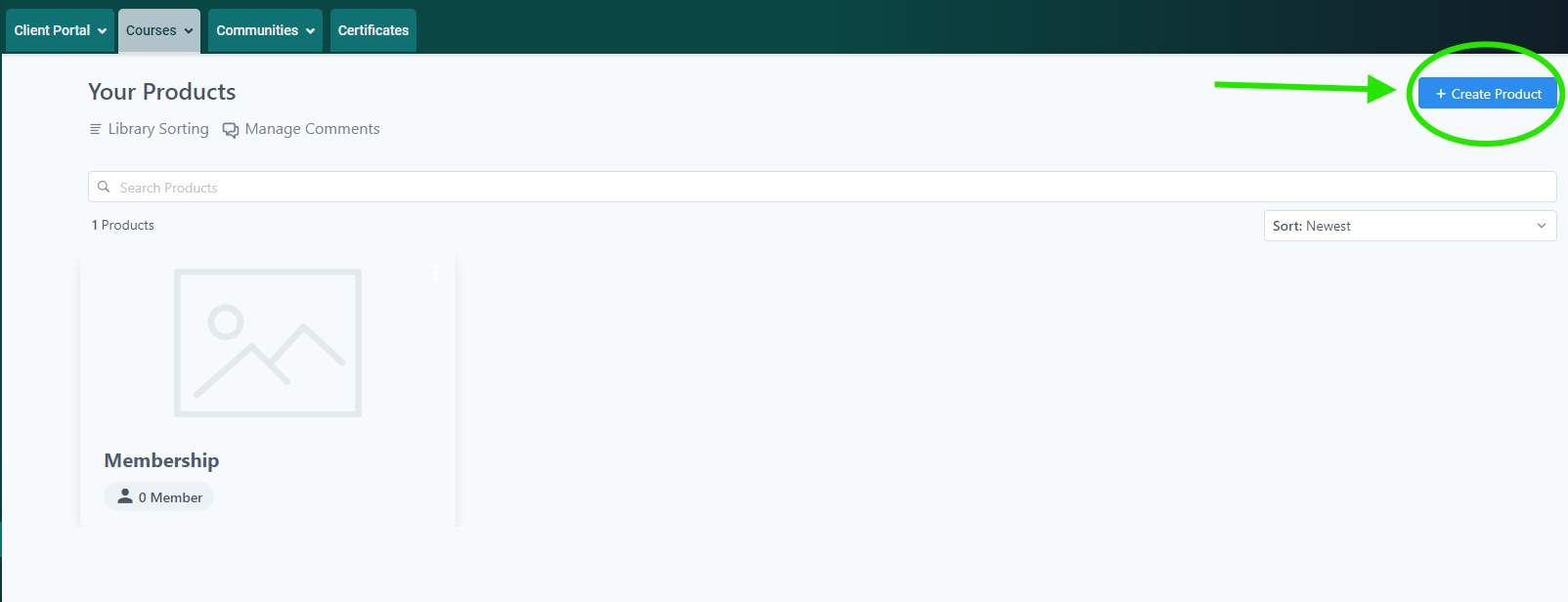
Choose “Import From Kajabi”

Which will bring you to this screen, where you can enter the email and password for the student you created in Kajabi in Step 1:
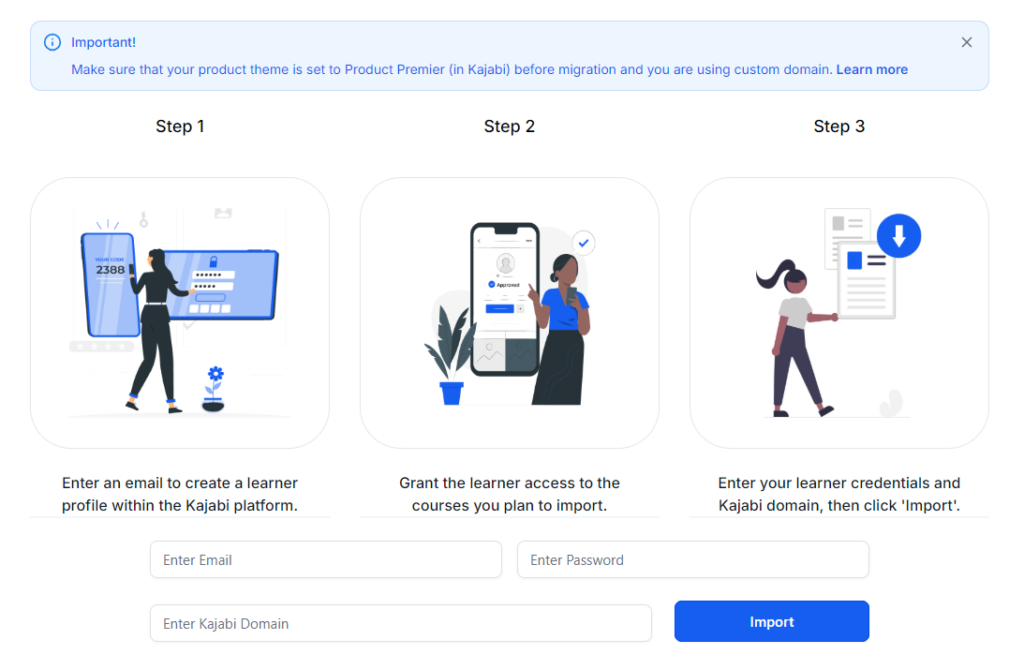
Add your custom Kajabi domain in the domain field (the domain where you enter learner login credentials).
When you’re done, it will look something like this:

Click the “Import” button.
It will open a consent form like this:
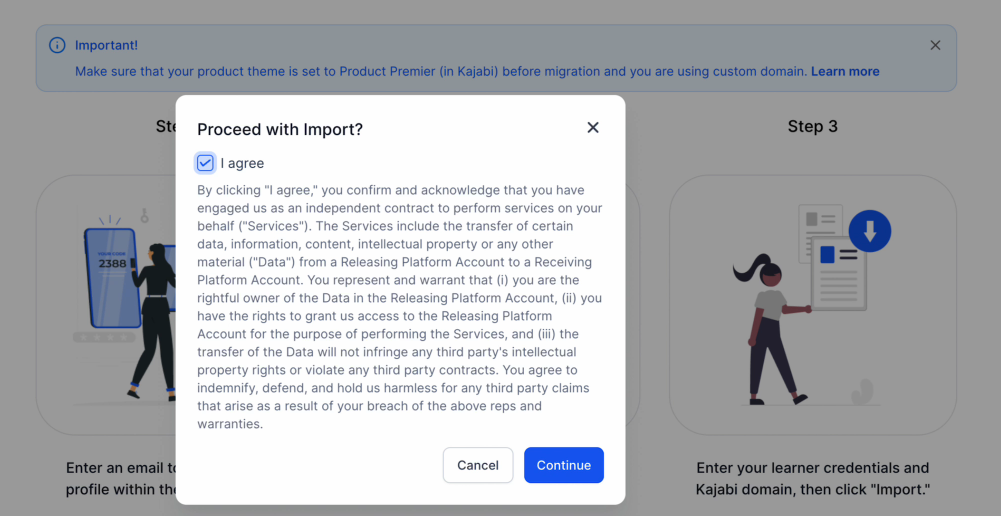
(Screenshot is for demonstration purposes only and is not intended as the actual legal language you’re agreeing to inside the importer.)
If you agree to the terms specified in the window (the one that’s open inside the Kajabi Importer tool, not the window shown here in the screenshot), then click the blue [Continue] button at the bottom right to proceed with the import process. If you do not agree, then click the [Cancel] button on the left to exit this window and cancel the import.
The importing process
Once the import process has started, it will log you in via learner credentials and start importing the courses.
IMPORTANT: even though the import progress screen says “you can close the window and relax…” DON’T CLOSE THE WINDOW!
Tabs can be switched while importing, but do not close the tab or window.
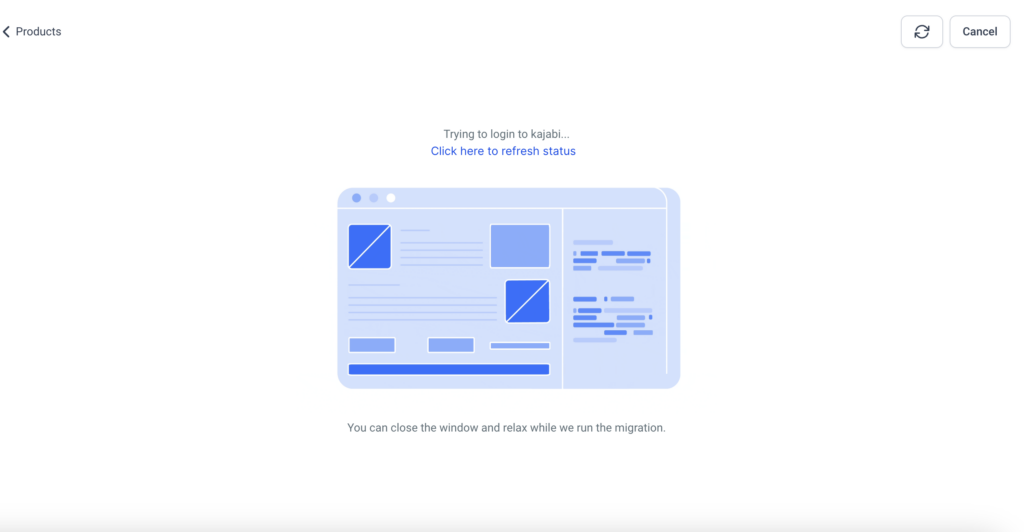
While progress will be shown, make sure to click the “Refresh” button to get an accurate status.
To cancel the importing process, click the “Cancel” button.
IMPORTANT: even though the import progress screen says “you can close the window and relax…” DON’T CLOSE THE WINDOW!
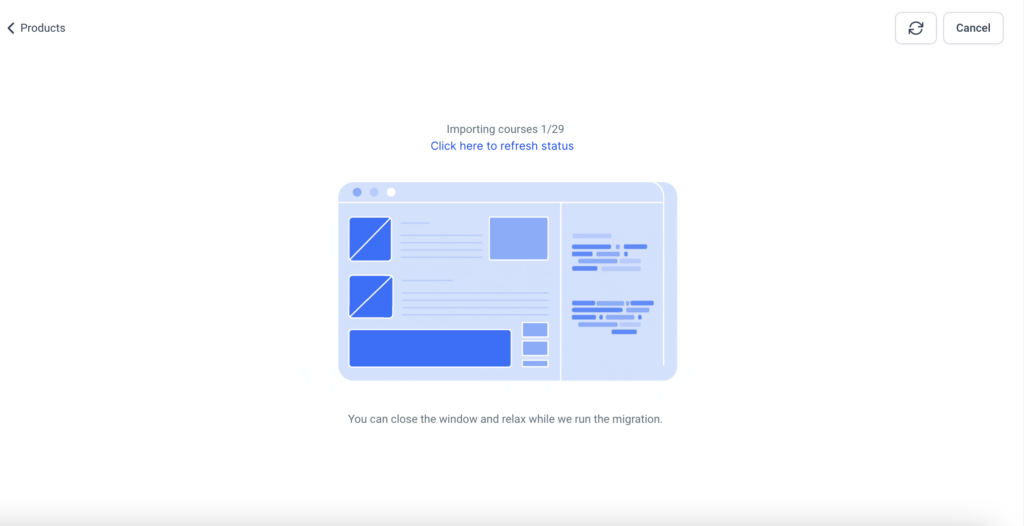
When the import is successfully finished
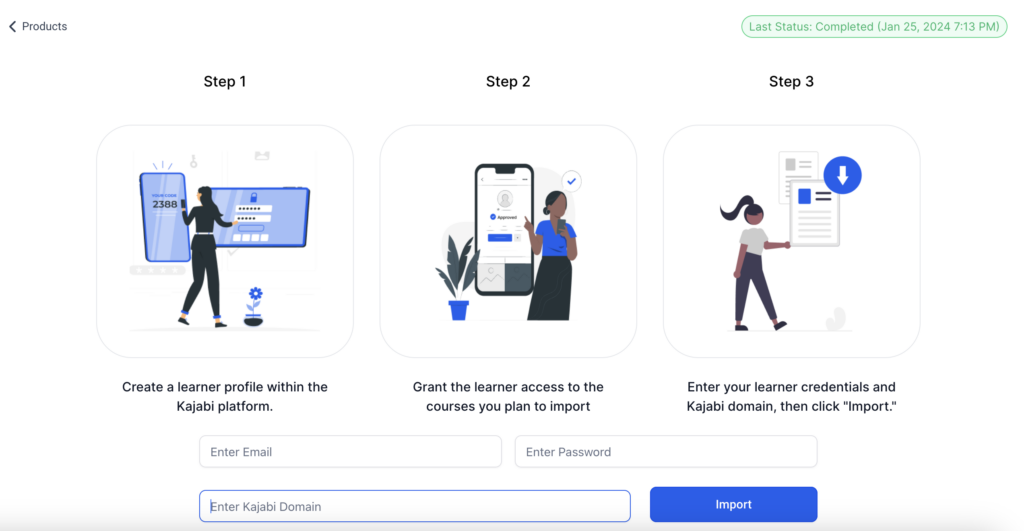
Once the courses are successfully imported, they will appear under the Products section.
Last updated will appear under the Import section, stating when the last process took place.
Troubleshooting the import process
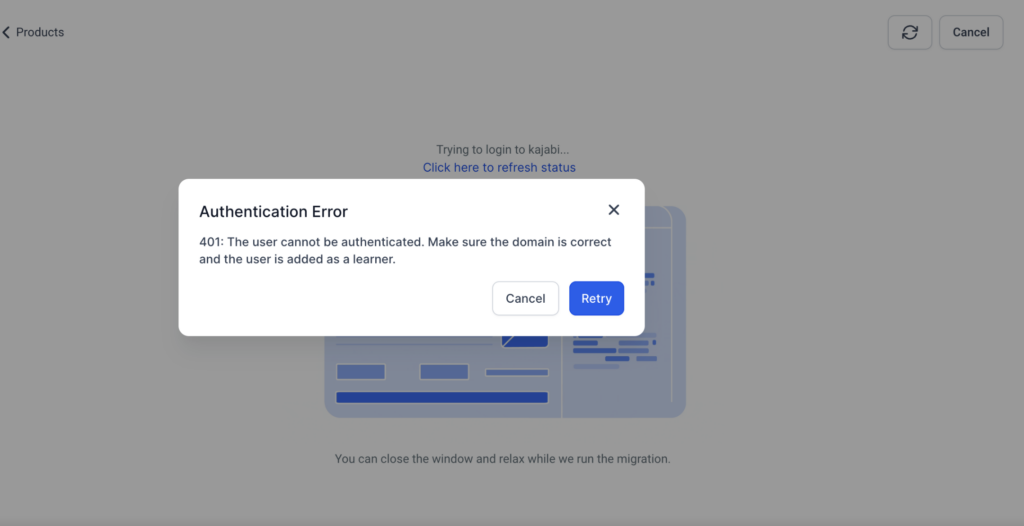
What causes an authentication error?
Authentication errors appear when the added domain or credentials are incorrect. To resolve this, carefully verify the credentials again and ensure they are correct before initiating the import process.
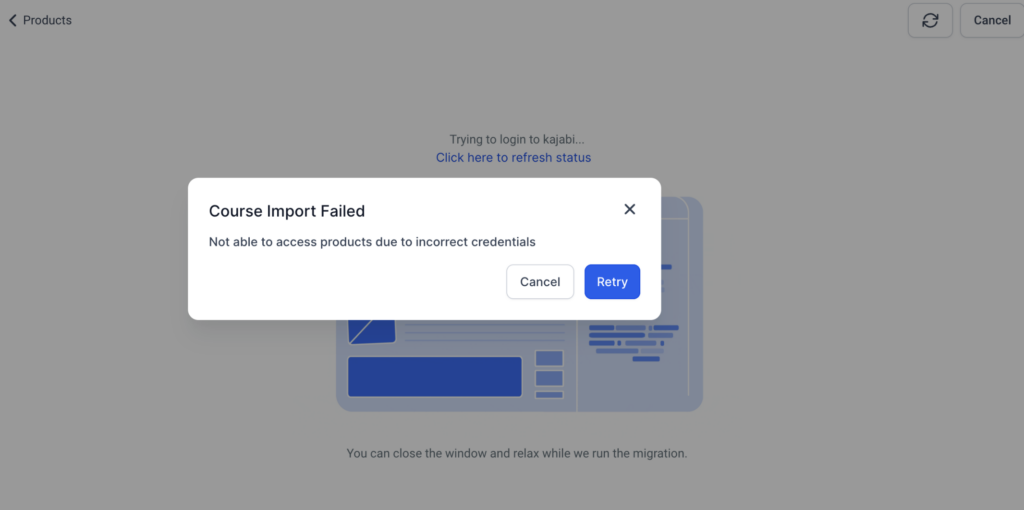
What causes a “course import failed” error?
Possible reasons for import failure:
- Incorrect Theme: Ensure that the selected theme is correct.
- Credential Verification: Double-check the accuracy of the provided credentials.
- Valid Domain: Confirm that the provided domain is compatible with the “/login” path. For example, “domainName/login” should lead to the login page.
- Retry Option: If the import fails, users can click on “retry” to resume the process from where it left off.
- Cancellation Clarification: If a user cancels the import, it will be considered as canceled by the user, and any new imports will start from the beginning.
It might also help to clear your browser cache or try a different browser before attempting the import again. Sometimes form errors occur due to caching issues.
If everything is set up correctly but you’re still seeing an error, reach out to Fern CRM and we’ll try to help. If we can’t help, we’ll direct your issue to the developers (HighLevel) and/or you can take the issue to Kajabi if the error is happening on their end.
When reaching out to Fern’s support team, please record a video that shows all of the steps in this article being applied, the import process, and the error message at the end. Please also include which browser you used, what type of computer you’re using, and what OS your computer is using. (For example, “I used Ecosia browser at first but then tried again in Firefox when that didn’t work. I’m using a Dell computer running Windows.)
This will ensure we can actually help instead of just going around in circles trying to get this info via multiple messages.