
How can we help?
How To Add One Section To Multiple Web Pages
There are 2 ways to save a section you’ve built on one page so you can use it on another page:
- Section Templates
- Global Sections
(The page builder in Fern CRM works the same whether you’re in the Websites or Funnels area, so this works on any page you’re creating.)
First, a quick definition:
Section: an “element” in the page builder which is the largest container on a page. It can house multiple rows, which is the next largest container in the page builder. Sections are outlined with a bright green border unless they’re “global sections” in which case they’ll be outlined with a lavender purple border.
Here’s what a regular section looks like before any rows have been added:

And here’s what a “global” section looks like, with the “Navigation” element nested inside a single column, which is nested inside of a 1-column row, nested inside the global section:
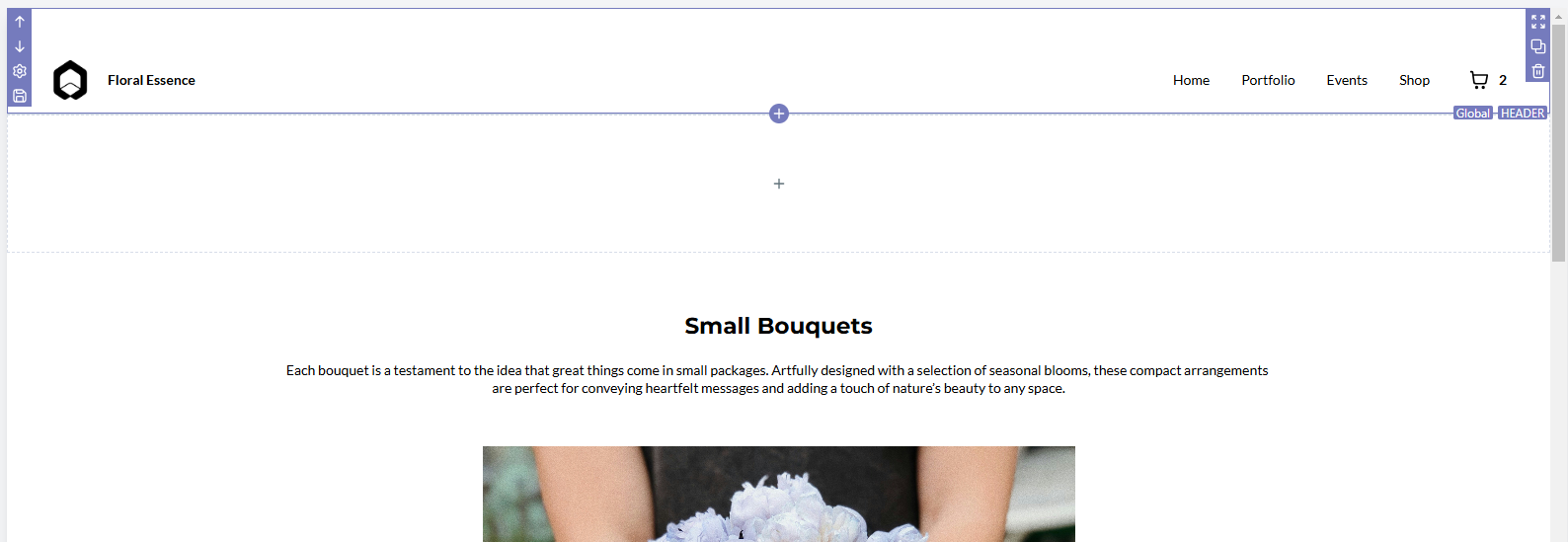
Notice how the Global section has the word “Global” next to the section name in the bottom right corner of the purple outline. Whereas the regular section has the generic name of “Section” and no “Global” in the bottom right corner of the green outline.
Section Template
If you save a section as a “Section Template” (more on how in a moment), you can drag and drop it into any page from the Elements menu, just like you would a regular section. It’s nice being able to build something once and reuse it!
Section Templates work similar to empty sections where it comes pre-built and you can modify it to meet the needs of that particular page. And the next time you grab it from the Elements menu, it will be exactly like the version you saved. Modifications you make to it on one page don’t affect how it shows up on other pages.
Think of it like having a building block that you designed.
If you want to create a section that’s updated across ALL pages whenever you make a change to ONE page, then you need to save it as a “Global Section.” (Scroll down for more about that.)
To create a Section Template and use it like a pre-built building block, follow the steps in the tutorial video below (in the Global Section part) and save it as a “Section Template” instead of a “Global Section.” Jump to minute 1:30 for the moment it shows how to save a section as a Section Template.
After you save it, you’ll see it in the Elements Menu under “Section Templates” and you can drag it onto any page you’re building.
Global Section
If you save a section as a “Global Section,” you can find it in the Elements menu and drag it onto any page you’re building, just like a Section Template.
The difference is ~ any page that also uses this same Global Section will be automatically updated anytime you make changes to the section on any page where it appears.
In other words, you can create a section that shows up on any number of web pages and when you update it on one page, it updates ALL the pages.
Which is super useful for things like:
- headers
- footers
- legal links that need to be on every page
- an announcement bar across the top
- promoting a limited time sale, offer, or lead magnet across multiple pages
- running ads on your site where you might need to change the ad copy/code occasionally
- and more!
There are lots of creative ways to use Global Sections, so go wild!
And it’s super easy to save any section as a Global Section and use it on any page. Watch this video for a quick tutorial:
As always, the closed captions of our videos are edited for accuracy and reliable.
You can use the built-in chapters to skip to different parts of the video:
0:00-0:10 Introduction
0:11-0:30 Example, demo
0:31-1:30 How to add a section and navigation menu
1:31-2:18 How to save regular section as a global section
2:19-3:12 How to add global section to other pages
3:13-4:25 Different ways to edit colors in global sections for different effects
4:25-5:27 How global sections work, how to use them, and use cases
Global Section Tips
Global sections only show up on pages you’ve added them to. So if you want certain pages to update automatically but want others to remain unaffected, then add the Global Section to the pages you want to update automatically and either leave it off of the other pages or create a static version that isn’t affected by updates to the global one.
It is possible to make a global section look slightly different on certain pages (if you want it to.) In the video above, you’ll see an accidental example of how the Global Section had a purple background on one page but a white background on the other pages. You can play around with transparent backgrounds or opacity to give it a different look on different pages.
Questions?
If you have any questions, concerns, rants, raves, or problems with using this feature, let us know!
Leave a comment below or post in the Fern CRM Brain Trust Community and we’ll respond asap. There’s a good chance we’ll create a help doc or tutorial video specifically for you and use your feedback to improve this article or add to our FAQs.
You can also come to any of our weekly Office Hours to get hands-on help with your specific situation. Just check the “Events” calendar for specific times/days and get the meeting link.