
How can we help?
Dedicated Email Domain Strategy
Email is a powerful tool for nurturing buyers and turning them into brand champions. So naturally, Fern CRM is designed to deliver better email results for your business.
But a tool can only do so much without the right strategy.
All you need to get started with using Fern CRM is a quick decision:
What word or phrase should you use for your email subdomain?
But, in truth, that question goes layers deep into strategy.
So this article explains more of the details and strategy that goes into that decision.
Email Reputation
The difference between emails that land in the inbox and emails that land in the junk folder is your email reputation. It’s how the inboxes receiving your emails perceive your sending domain. A trusted domain’s emails are sent to the inbox which means higher open rates. A shady domain’s emails are sent to the junk folder which means low open rates.
When you send emails from Fern CRM ~ using automations or the omnichannel inbox ~ you’ll be sending them from your own dedicated email domain.
If you’ve been using a tool like ActiveCampaign or ConvertKit or Gmail up until now, this might be new to you because those tools make you share a domain with LOADS of other people.
And you have no control over how ethical those people are with their email marketing. Some of them might even be using those tools specifically to send spam, knowing it’s dirty! (And that’s why they don’t want to do it on their own domain.)
With Fern CRM, you get more control over your email reputation which means more of your emails will land in customers’ inboxes instead of the junk folder.
The Fern CRM Email Engine
With the free, built-in option, you’ll still be sharing the email engine with other ethical business owners. But all your emails will be sent from YOUR own domain.
Which means the inboxes receiving those emails will start to recognize your domain and your reputation will be based on how YOU behave.
(And we’ll help you create an awesome email reputation from scratch!)
As far as sharing the email engine with others, Fern CRM is designed to help ethical business owners outperform dirty companies. Which means you’ll be sharing the email engine with other ethical businesses. (And if we catch someone using our tool unethically, we’ll remove them.)
So even the parts you share will perform better than those billion dollar softwares that don’t care about your deliverability as a small business.
Note: For more advanced businesses, we can also help you set up a dedicated email engine that you don’t share with anyone else.
This costs more of course, but you’d be paying the fee directly to the email server company, not us. (We’re happy to help you set that up and we don’t charge extra for it.)
But for most businesses (including Fern CX and CRM!) having your own email reputation on an email server that you share with other ethical businesses is all you need to enjoy open rates of 60-90% and protect your reputation.
The Strategy
So here’s what you need to do between now and your Setup Session: choose your dedicated email domain.
In 99.9% of cases, it should be a subdomain on the domain you use for the rest of your business.
A subdomain is simply a word or phrase that sits in front of your root domain.
Example:
Fern’s root domain: ferncrm.com
The subdomain where your Fern CRM dashboard lives: dash.ferncrm.com
The subdomain where the Action Center lives: my.ferncrm.com
The email subdomain we use for marketing emails: your.ferncrm.com
Make sense?
Only one thing can “live” on each subdomain at any given time.
For example, if I were to install WordPress on dash.ferncrm.com, everyone would lose access to their Fern CRM dashboards. The Fern CRM tool would still exist, but no one would be able to access it until I took WordPress off of it.
Same goes for your email domain. You need a subdomain that isn’t used for anything else. And, for the sake of email reputation, we recommend it be something you haven’t already used for something else (so you can start with a fresh, clean reputation.)
It can be any (non-offensive, non-spammy) word. Some examples:
notes.yourdomain.com
words.yourdomain.com
msg.yourdomain.com
letters.yourdomain.com
my.yourdomain.com
your.yourdomain.com
from.yourdomain.com
Who Will See This Email Domain?
The subdomain you choose will be visible in every email you send, but it’s buried in the technical details like this:
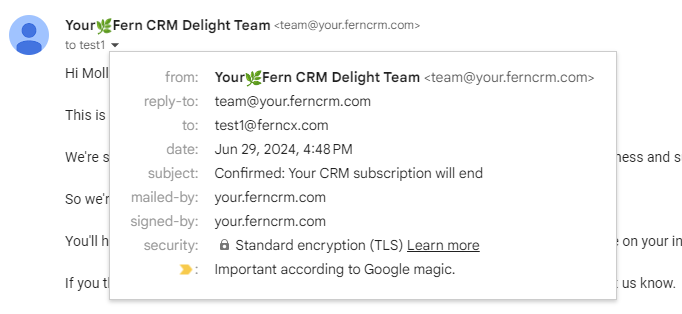
Look at the first line in the box where it says “from:”. The from email is this:
team@your.ferncrm.com
And then a few lines lower it says:
mailed-by: your.ferncrm.com
signed-by: your.ferncrm.com
This is where your email recipients will see it. (But really, when was the last time you looked at this info for any of the emails you receive?)
And while we’re looking at this screenshot, notice the last line where it says:
“Important according to Google magic.”
That yellow flag means Gmail put this in the inbox and marked it as important because of “Google magic.” It did this because Fern CRM has a good email reputation!
One of the things Google is looking for is that the “from,” “mailed-by,” and “signed-by” all match. (Plus a list of other things that we’ll set up during your Setup Session.)
What email address do I give out to people?
Once you set up your email domain and start using Fern CRM to send and receive emails, you can put any word or name in front of your email domain and it becomes an email address. No additional setup steps needed.
And, any emails you send to/from these email addresses will show up in your Fern CRM omnichannel inbox.
The only catch is ~ you need to use the subdomain you choose for your dedicated email domain.
You can give out an email like this – info@yourdomain.com – and we can set it up to send all emails to your Fern CRM inbox. (It would be similar to sending all your emails to a single Outlook or Gmail inbox.) But when you reply, the email needs to come from your email subdomain. (For example – info@notes.yourdomain.com)
The reason for this is because your Fern CRM account can only be connected to one dedicated email domain at a time.
And, to protect your email reputation, you want all of those “from” lines we saw in the screenshot above to match:
from:
mailed-by:
signed-by:
So you can still give out your regular email address like you always have, but all replies will come from your email subdomain email address.
Make sense? If not, leave a comment below and we’ll answer any questions you have.
Action Step
Choose ONE subdomain to use for sending emails.
Start with the root domain that most of your audience recognizes. Then choose a word or phrase that you’ll put in front of it.